
Photo editor
Glare Removal
Takes the shine spots off glass, metal and gloss so the label reads again.
4 free credits on sign-up, enough for one photo to animate later. Clips start at 21 credits.
- 1Add the shiny product photo
- 2Run it at Standard, or Pro for small type
- 3Use the result as an opening frame
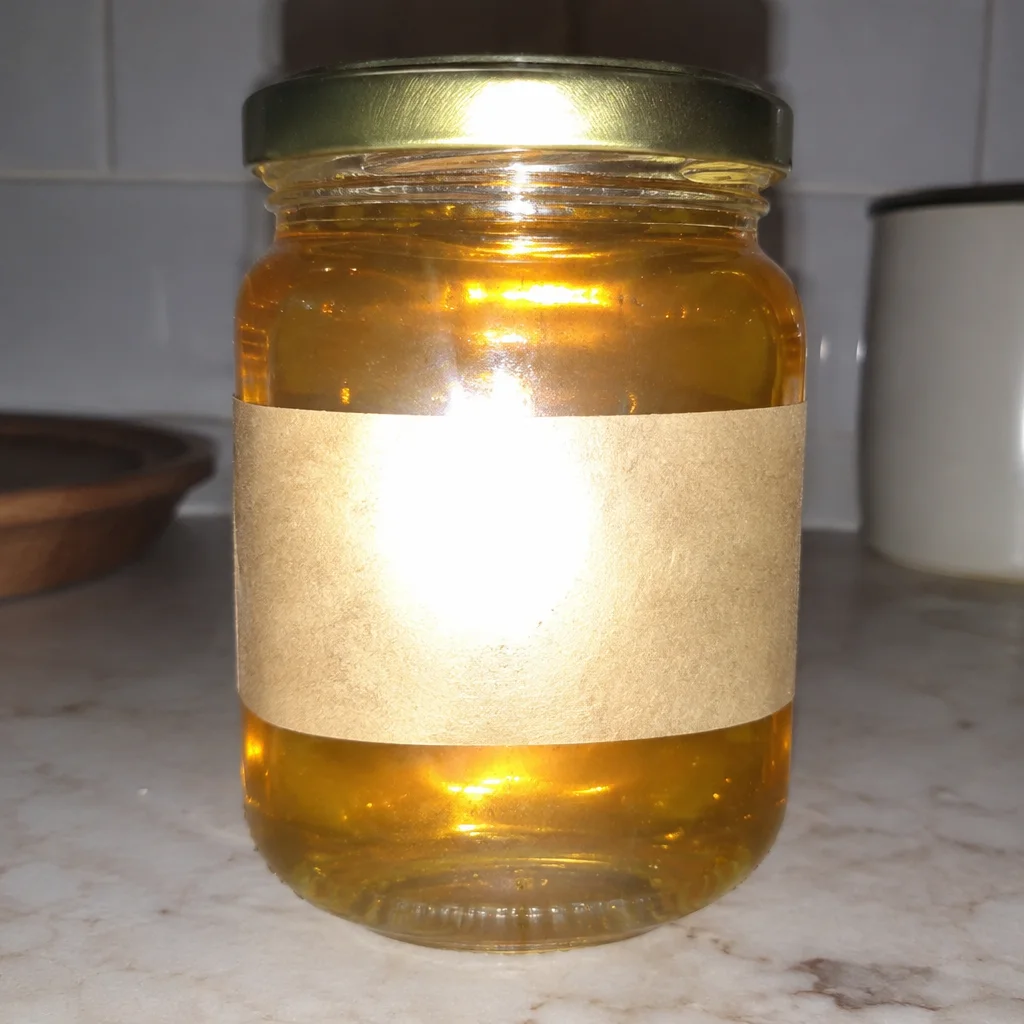
Went in
Came out
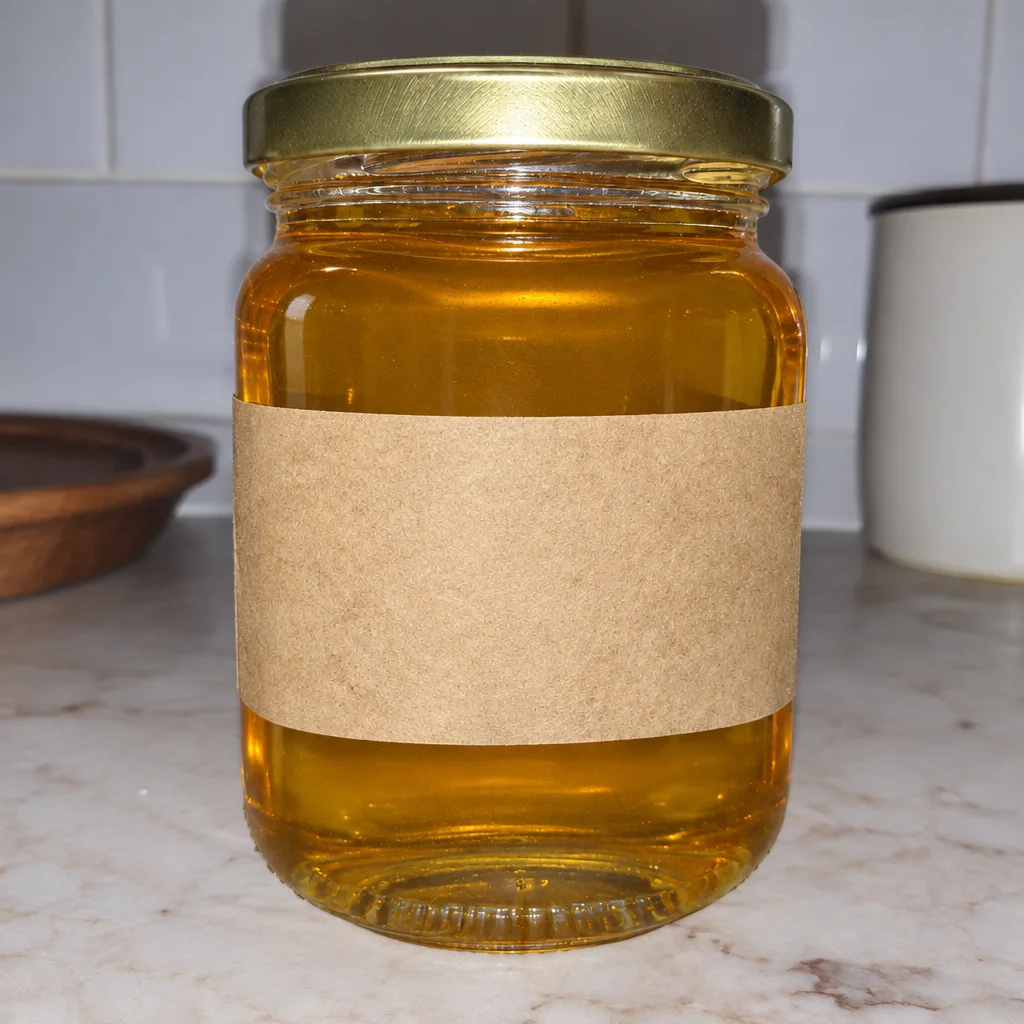
Rendered by this tool from the product photo shown on the left.
Glass bottles, foil pouches, chrome and lacquer catch the light of whatever room they were photographed in. The result is a white patch across the label exactly where the brand name sits. In a photo that is distracting; as the first frame of a clip it is the thing viewers look at.
This tool rebuilds what the glare hid, the lettering, color and texture, and tones the highlight down to a soft sheen so the item still reads as glass or metal. Background and composition stay as they were, which means the photo can go straight into a video without reframing.
Use it on skincare droppers, beverage cans, perfume, watches and electronics with glossy screens. One run is 4 credits on Standard. If the label is badly washed out, try Pro at 12 credits, which reconstructs small type more faithfully, and compare it with the physical product.
Credits
| Option | Credits | Good for |
|---|---|---|
| Standard | 4 | Quick photos and opening frames |
| Pro | 12 | Gallery and PDP photos |
| Max | 44 | Print and zoom |
Settings
- Product photo
- Output ratioSame as upload1:12:33:29:1616:93:44:34:5+6
- Output · Any shape, chosen under Output ratio
In the Studio
- Send any photo into any video type without uploading again
- Length, shape, resolution and cost shown before you render
- Opening frame and clip both kept in your library
- Draft 360p previews; 720p, 1080p and 4K renders
About this video type
Also try


Product Retouch
Clears dust, smudges and stray reflections before the photo goes on camera.
Beauty Product Video
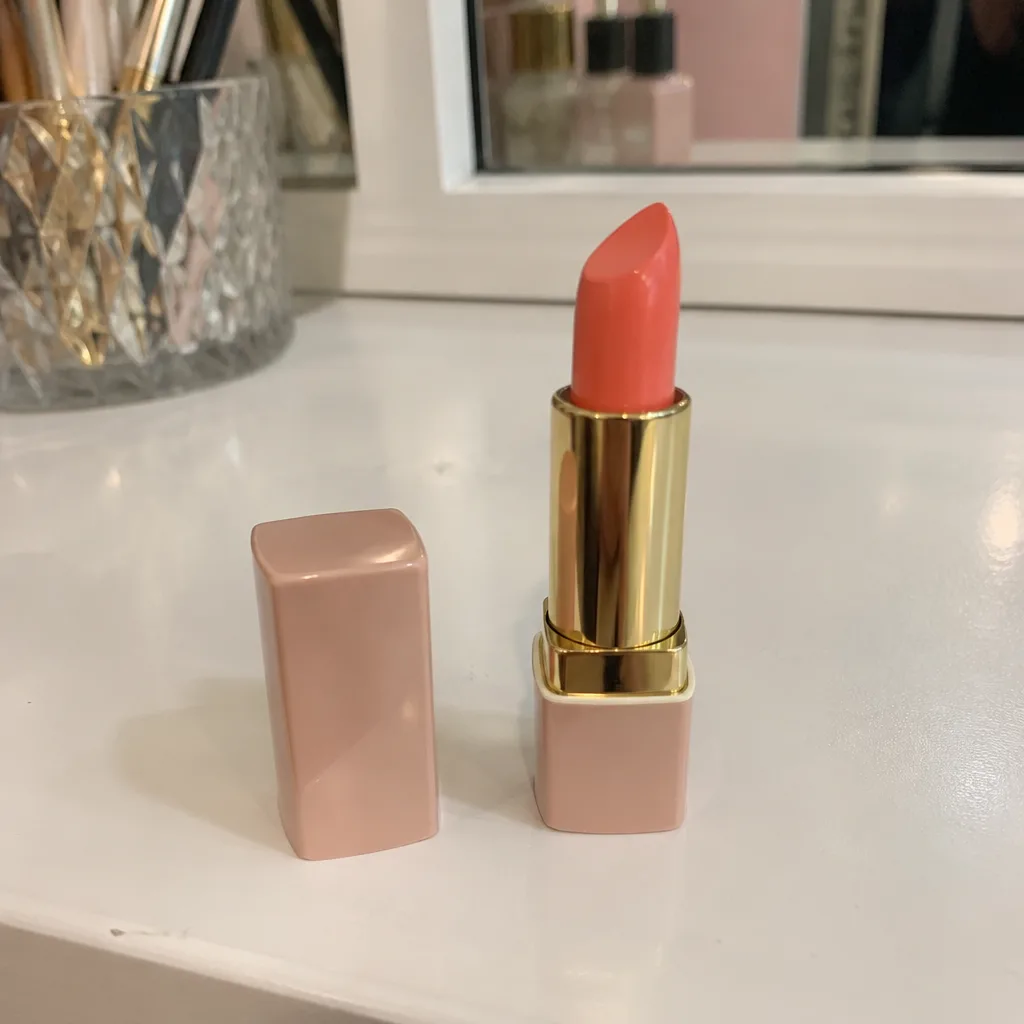
Campaign-style motion for skincare and cosmetics: splash, turn, silk, texture.
Jewelry Video
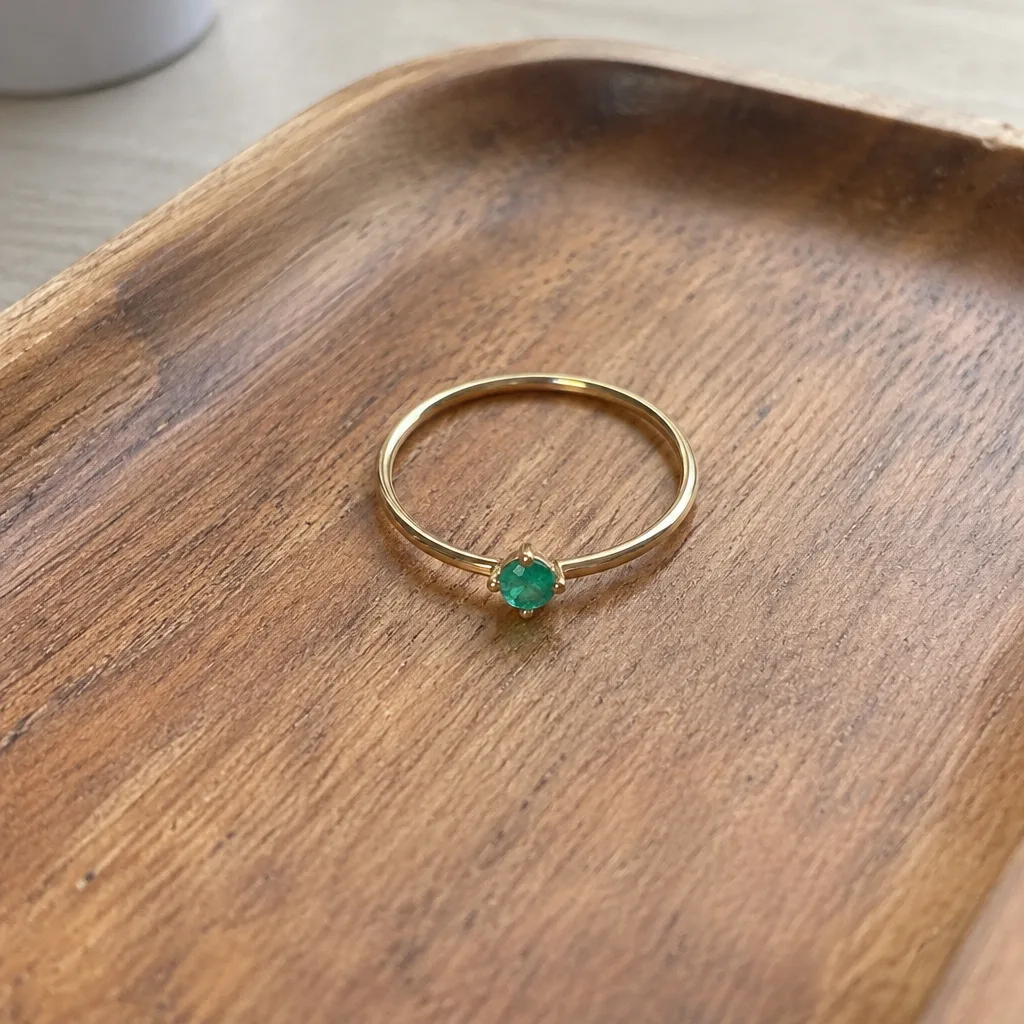
Glints, slow turns and macro drifts over stones and metal.
360° Product Spin
A full turntable rotation of your product from one photo.